
Dear DIS Parent & Student: The DIS Department of Information Technology is ready to help you during your program of studies at DIS. Below is a list of IT resources that will help you while pursuing your studies at DIS.
Quick reference
 FACTS Student Information System
FACTS SIS Provides DIS families with the information they need. The system automates the seamless flow of information between school administrators, teachers, and parents through state-of-the-art solutions that provide convenience and efficiency.
FACTS Family Portal gives families and students access to Health information, Attendance, Gradebook, Report card and other important information.
 Google Workspace for Education
 is used by over 120 million students and educators around the world. These tools help educators and students communicate, collaborate, and manage classrooms. Google Workspace also has built-in accessibility features to support students with diverse needs and learning styles, which helps create more inclusive classrooms.
 DIS Network
DIS students have a secure internet access through wireless high speed internet connection that helps them browse the internet safely and access the local learning resources.
FACTS Student Information System
FACTS Family Portal gives families and students access to Health information, Attendance, Gradebook, Report card and much more important information.
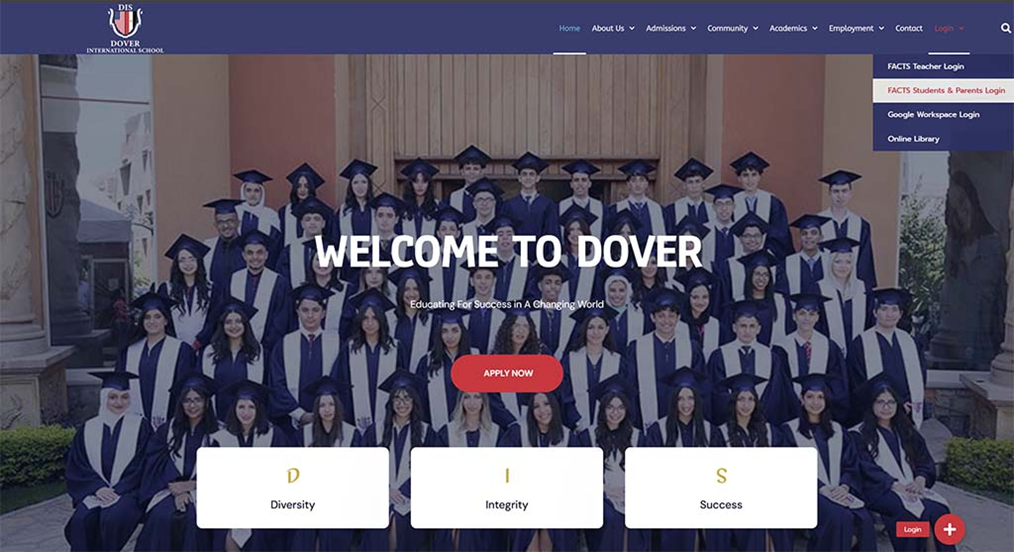
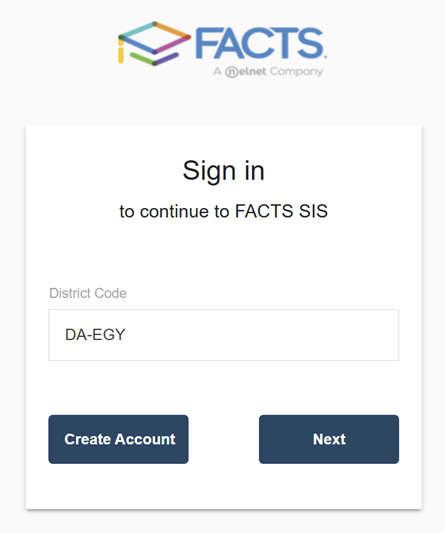
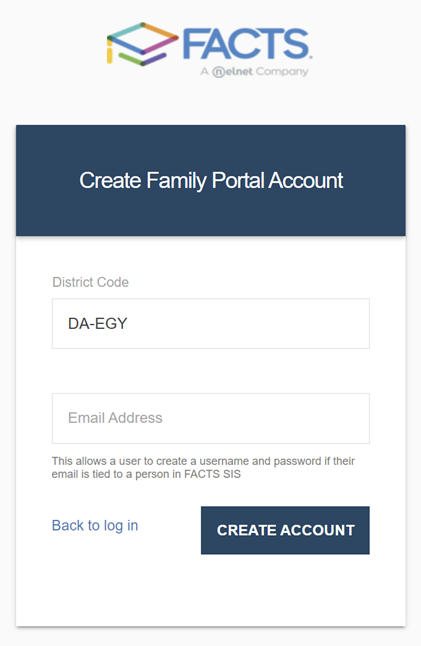
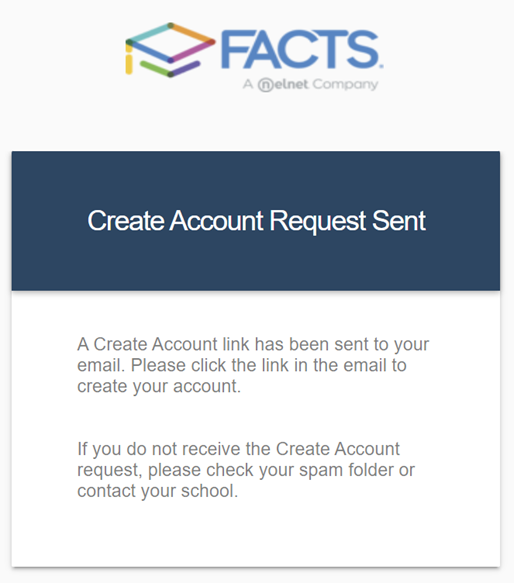
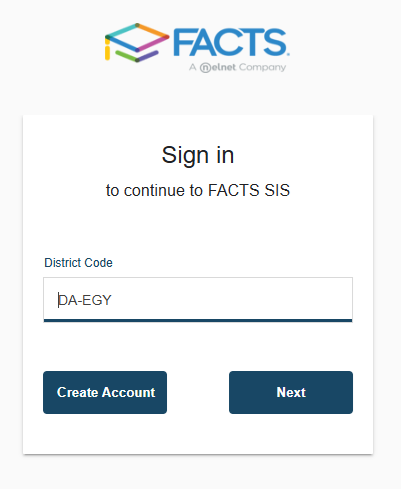
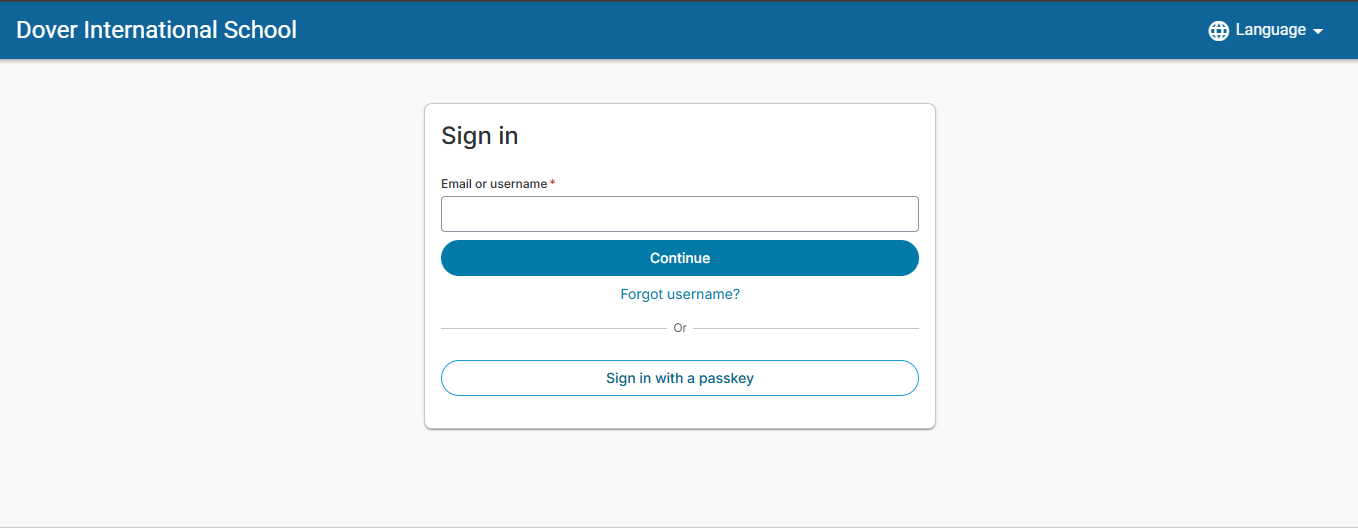
All parents and students can create FACTS Family portal account using the personal email that registered in the FACTS SIS by following the below steps

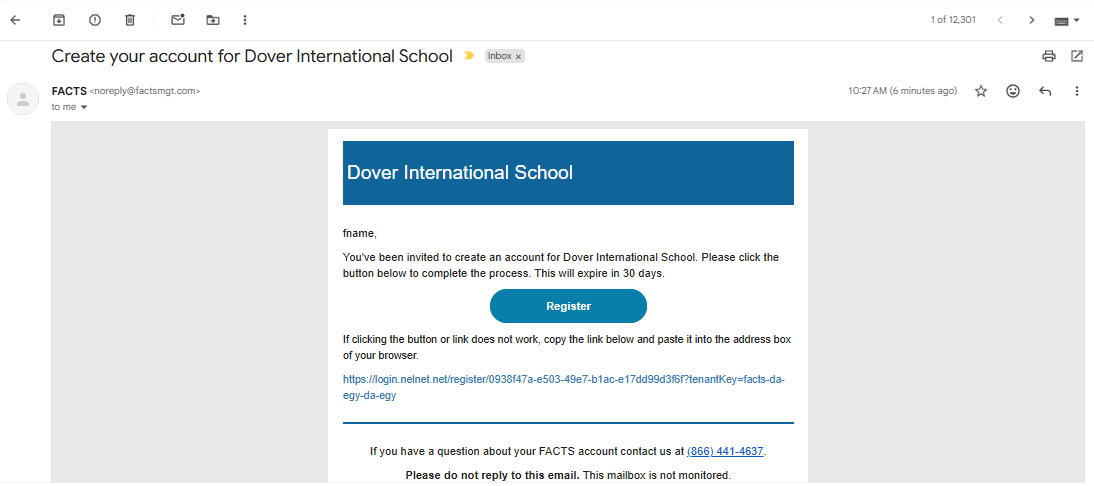
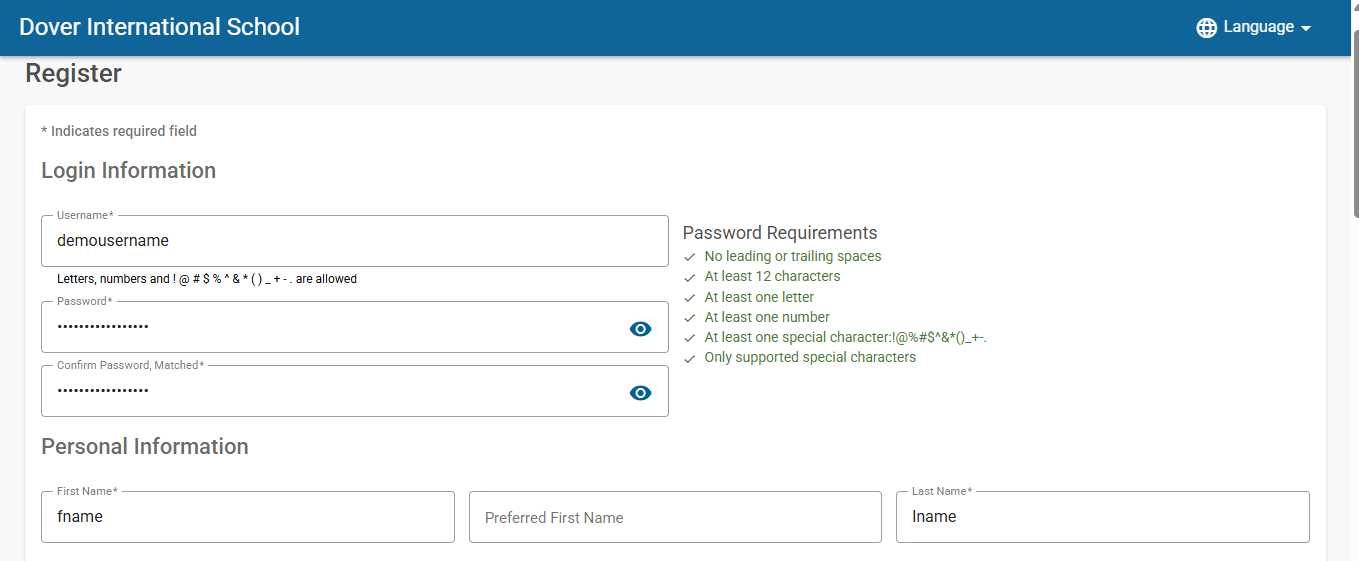
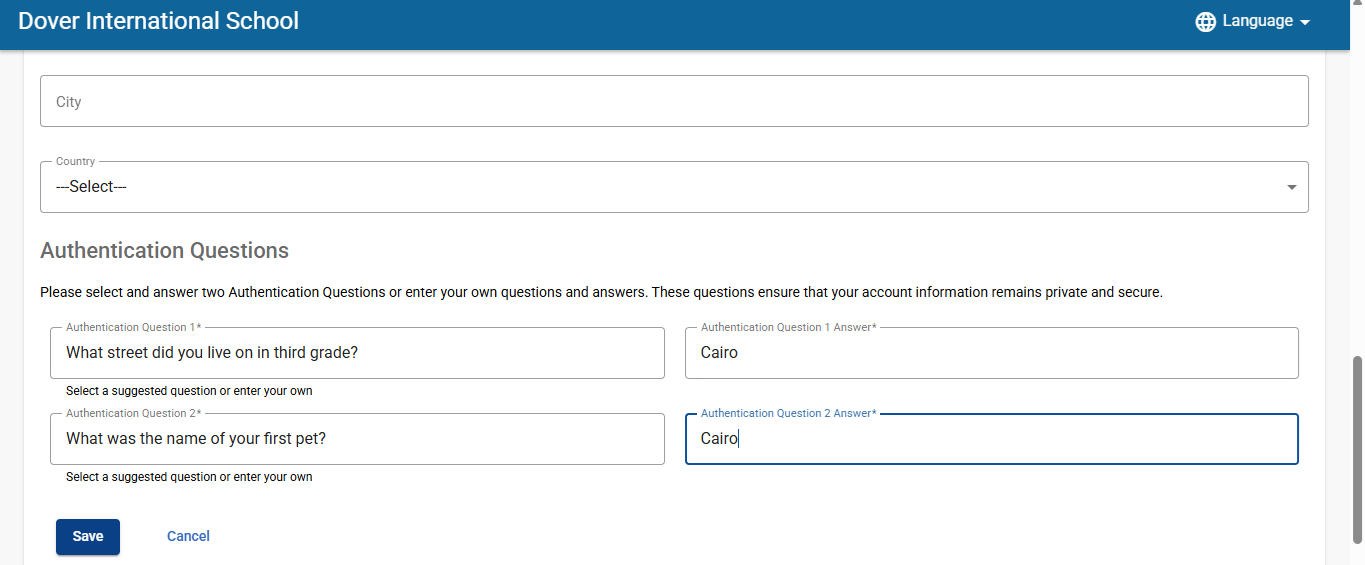
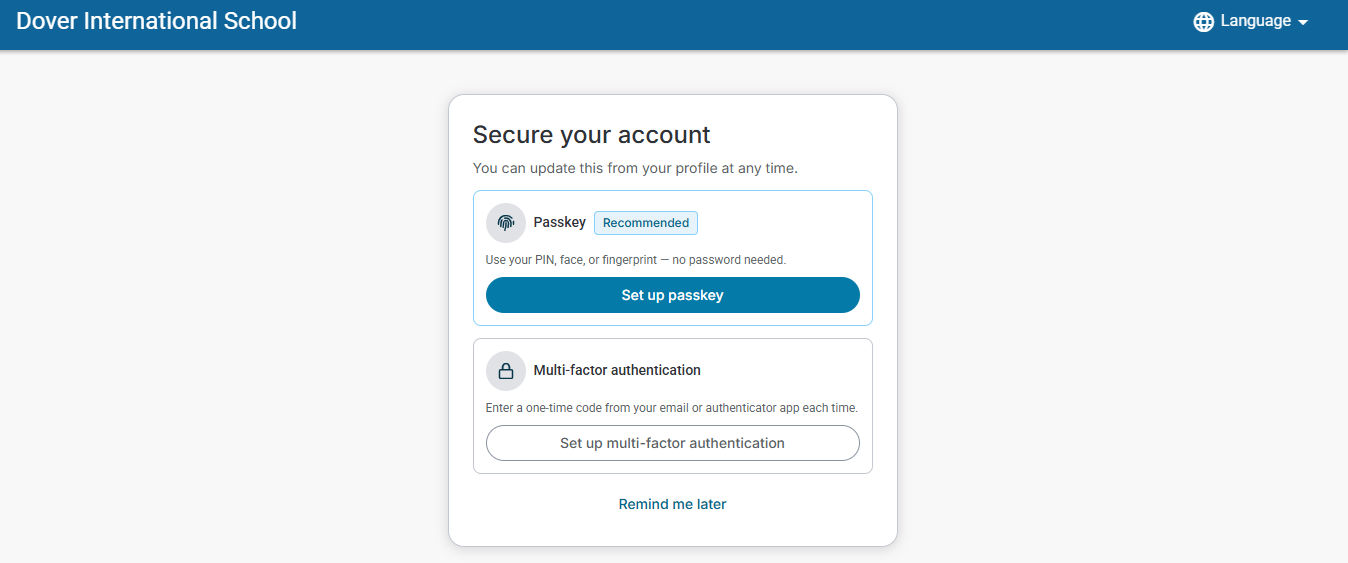
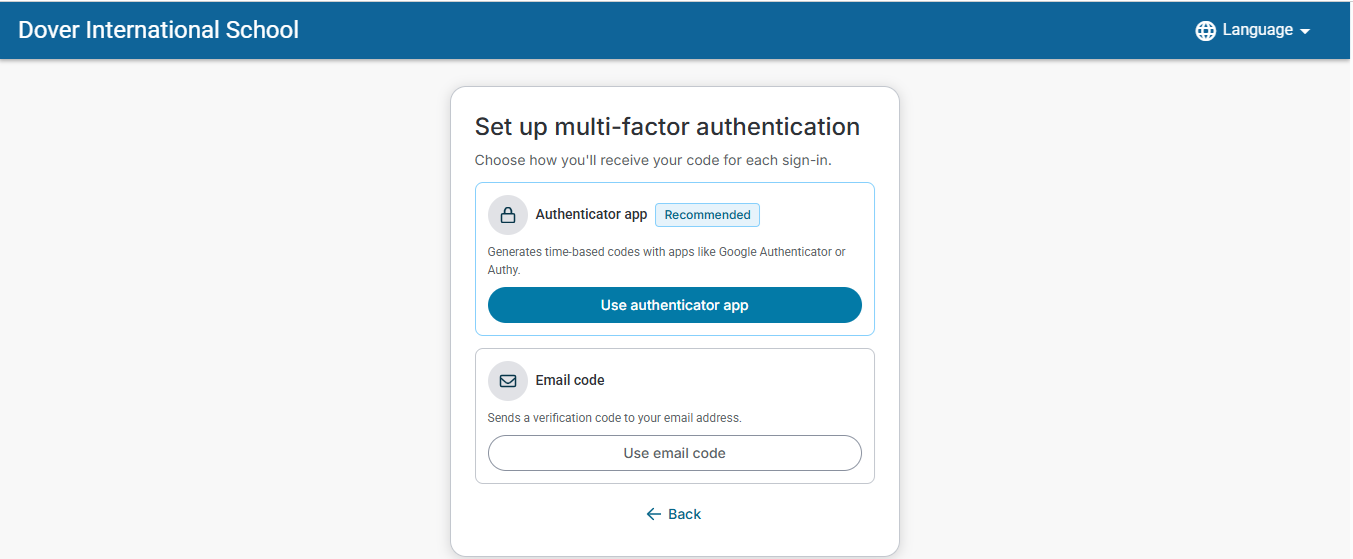
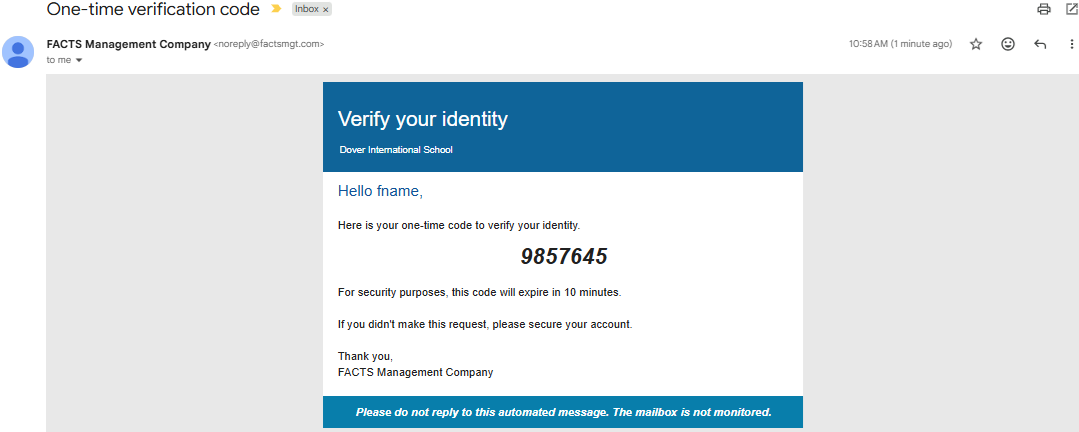
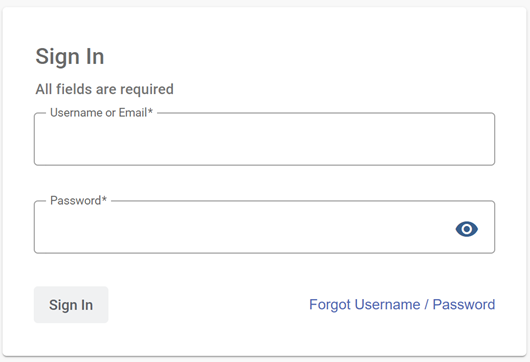
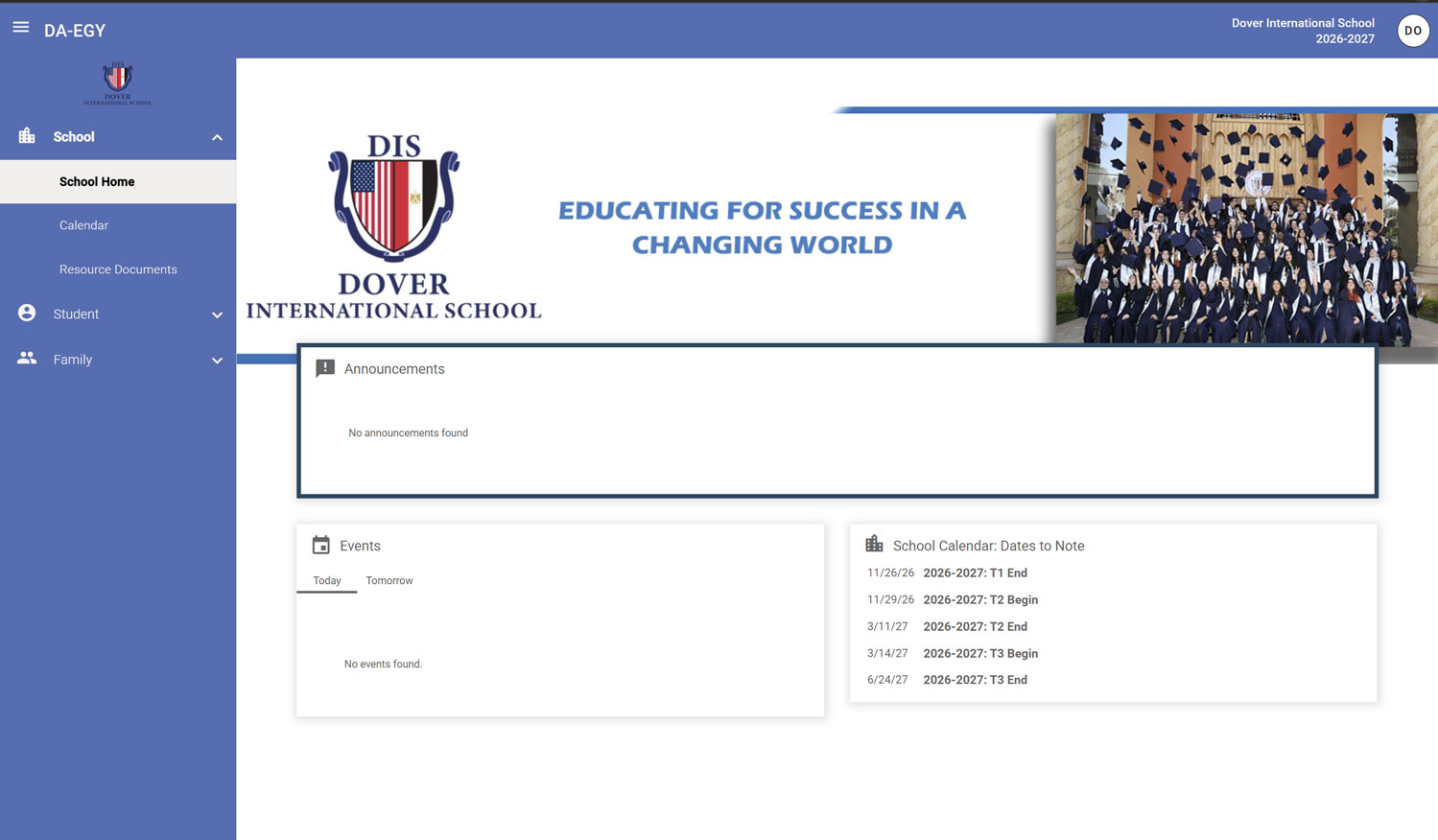
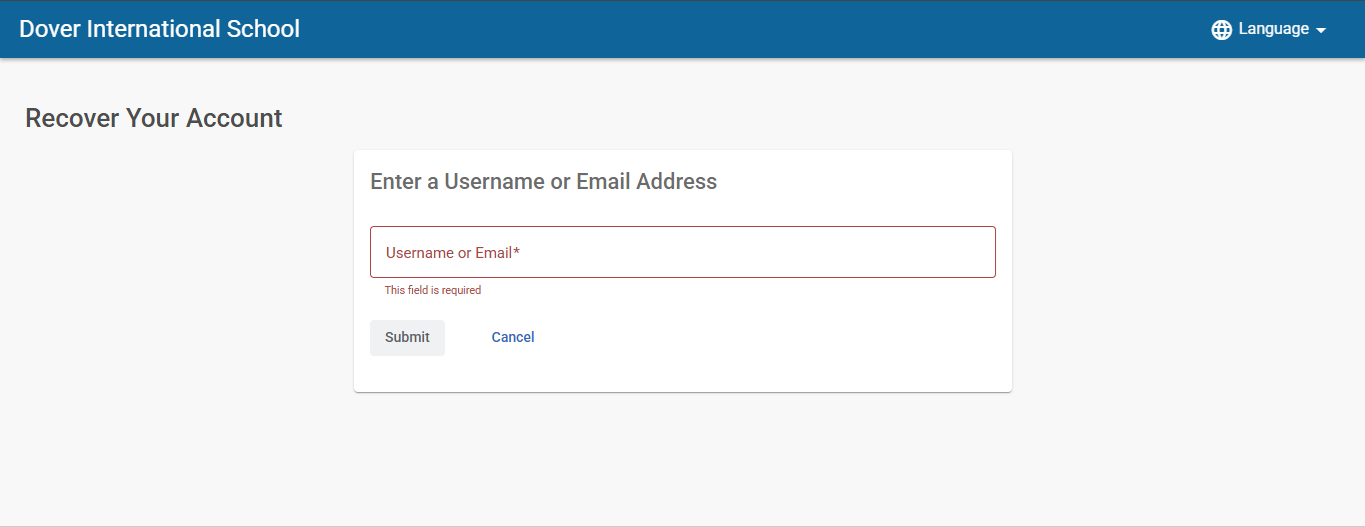
In case of forgotten username or password, you can reset it by following the below steps:
Google Workspace for Education
Google workspace for education makes collaboration easier, streamline instruction, and keeps our learning environment secure.
In order to make the student account info available for parent and student at any time, the account info has been placed in FACTS Family Portal to make it easy to access; follow the below steps
1- Log into FACTS Family Portal (refer to previous section if you don’t have an account)
2- In the left side navigation bar, click on family and family home, then select the student name from the family members drop down menu, the student’s information will appear, you will find the student email address in front of Email address title and the email password in front of ID Number: school:
Student’s email address is student (first name) (dot) (student id) @daisegy.com
Student’s password is student First name followed by 4 digits (in some cases 5 digit)
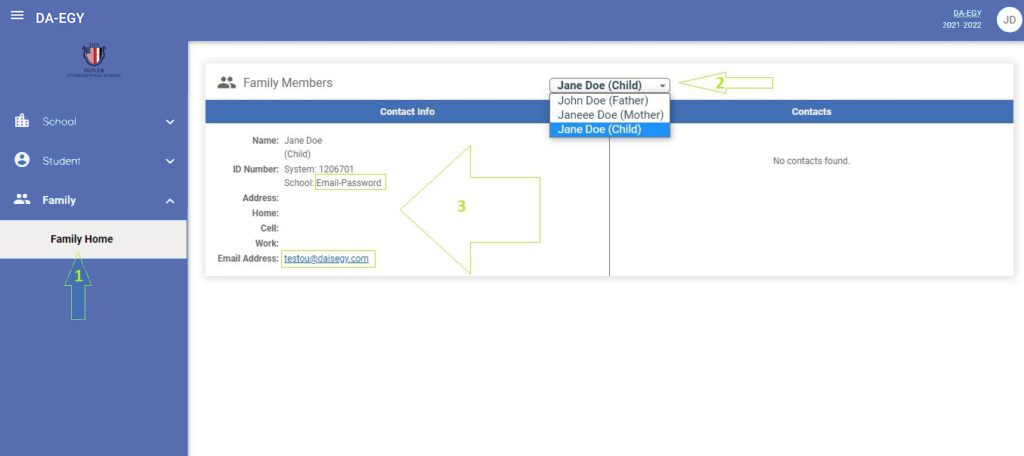
3- Write down the account info to use later when needed to sign into google workspace account.
To log into google workspace, you can simply go to google.com and click on sign in button and enter the student full email address (student FirstName.StudentID@daisegy.com), click next, enter the account password and click next (you can find the student email address and password in FACTS Family Portal).
Or go to DIS website www.daisegy.com , click on login menu, then click on Google workspace login.
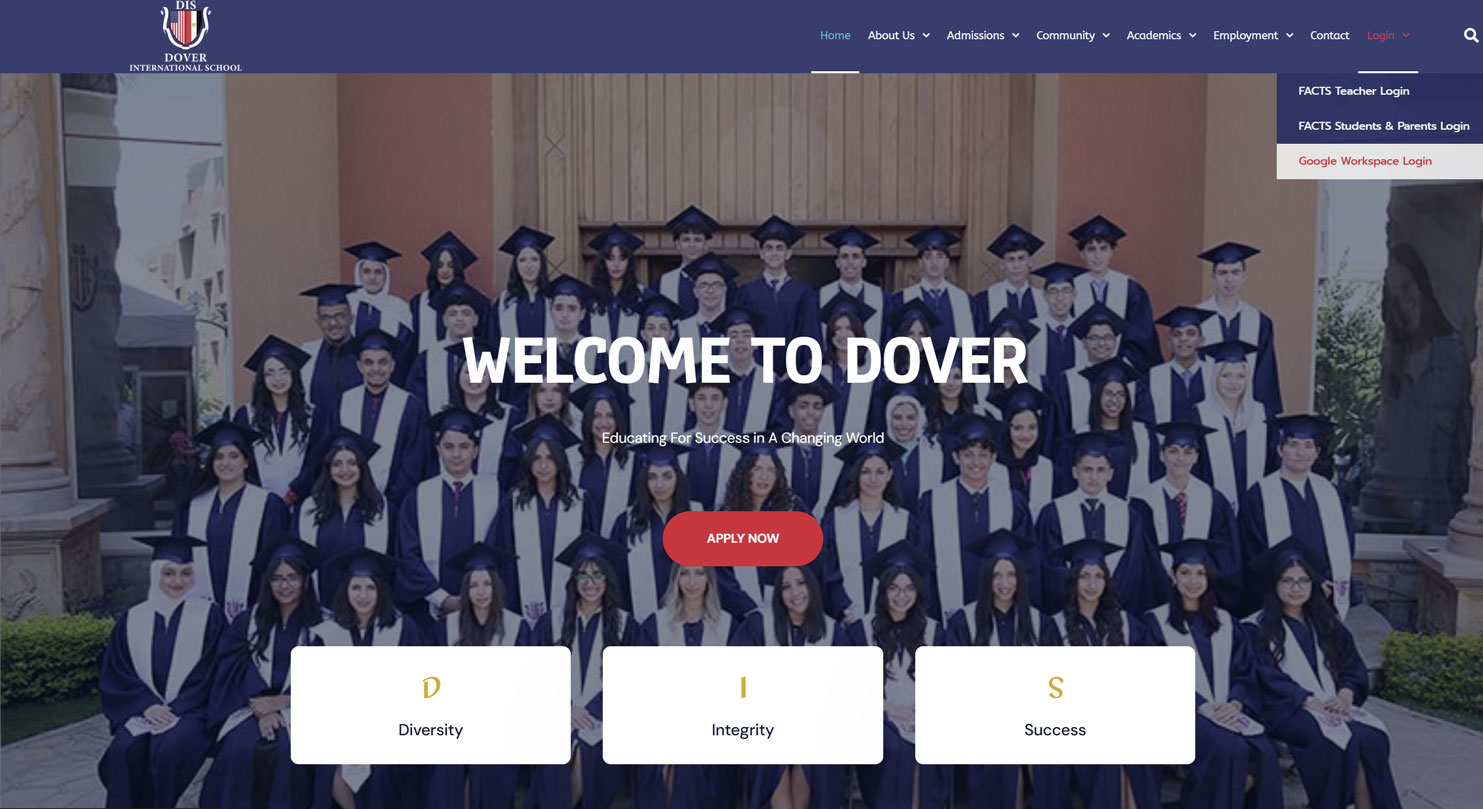
The sign in page will appear with school domain prewritten in email field, here you have to enter the student email first part (FirstName.StudentID) without @daisegy.com as it written already for you.

After you have successfully logged into google workspace, you will have the right to navigate and access other google apps like Gmail, Drive, Classroom, etc…
To navigate and use Google Apps, click on the Dots menu in upper right side and click on the needed app to open it, for example (Classroom)

Google Classroom
Students do not need to ask for class code or invitation to join the classroom. After the integration between FACTS SIS and Google workspace, DIS student will find his/her classrooms for the current academic year without the need to join.

DIS Network
DIS students have a secure internet access through wireless high speed internet connection, that helps them browse the internet safely and access the local eLearning resources.
WIFI Access
WIFI network Name SSID is: DIS-Student
Password: Ask the school stage supervisor to provide you with the WIFI password.
local E-Learning resources
DIS Students can access local eLearning resources that are hosted in the school data center through wireless network. Students will find more eLearning resources including eBooks and software utilities.
To use DIS local eLearning resources: